Pages

Showing posts with label image editiors. Show all posts

How to Split Raster Images to a PDF file in Ubuntu Linux?

If you Ubuntu Linux and want to print a poster using a raster image but the image that you have will have to be split into several "pieces" before printing (which you can "attach" later of course), then PosteRazor is an extremely simple yet a very useful tool built for that exact purpose.

It's an cross-platform opesource application thus not only in GNU/Linux but you can use it in MS Windows and Mac OSX as well. Once installed you'll have to load your image file and then follow its "5-step" process and then it'll split your raster image and create a PDF file by using which you can easily print your poster since each page in the PDF contains a "cut" of the original image.

Main features...


*. It's written in the FLTK tool-kit thus uses its own "theming" which doesn't integrate that well under Gnome nor Qt/KDE... but as soon as it gets the job done, who cares!.

*. Once loaded, it'll display information such as the raster image resolution, DPI, size and color type.

*. Supports a huge list of raster images such as: BMP, DDS, Dr. Halo, GIF, ICO, IFF, JBIG, JPEG/JIF, KOALA, LBM, Kodak PhotoCD, PCX, PBM, PGM, PNG, PPM, PhotoShop PSD, Sun RAS, TARGA, TIFF, WBMP, XBM, XPM.

*. A five step wizard type process is involved which lets you: Change the PDF pages size (A4, letter, Tabloid, etc), overlap settings, image splitting, etc.


Well, that's about it actually. When done all that, you can save the split raster image into a PDF which can be sent into printing later.

You can install PosteRazor in Ubuntu 11.04 Natty Narwhal, 11.10, 10.10 and 10.04 by using the below command in your Terminal window.
sudo apt-get install posterazor


That's it. Good luck.

Install Agave in Ubuntu - Excellent Color Palettes Creator for GNU/Linux!

I think anyone would agree on the fact that both colors and our emotions (buggers... control our lives one way or the other :P) are bound together, non-"removable", almost!. Whenever we see a color, our minds reacts to it in different ways. So, even by a slight change in colors (say in your house) can have a massive effect in the level of emotions.

Although I'm not much of an artist but if you are or if you aren't still wouldn't it be nice if there is an application that has the ability, once given/input an initial color then to automatically generate similar colors that "goes" with it?... Then you'll love the simple yet elegant color palette creator for GNU/Linux called Agave!. Even if you're too lazy to pick an initial color, Agave has built in base colors that you can use to start your "projects" :).

Or, if you found beautiful looking colors while browsing web or in an image in your GNU/Linux Laptop/PC HDD, etc and wanting to know the color code... then Agave has a built it "eyedropper" that can "read" any color within your computer screen (web browser, application, image... anything on your screen).


Changing colors (from codes to hue/brightness, etc) to creating your own palettes ... Agave is an excellent app for you artists :).

If you use Ubuntu 11.04 Natty Narwhal or older versions, you can easily install it by issuing the below command in your Terminal window.
sudo apt-get install agave
 If you're using Fedora Core then open your package manager via: System → Administration → Add/Remove Software


and search for "agave" then simply follow your on screen instructions to install it.

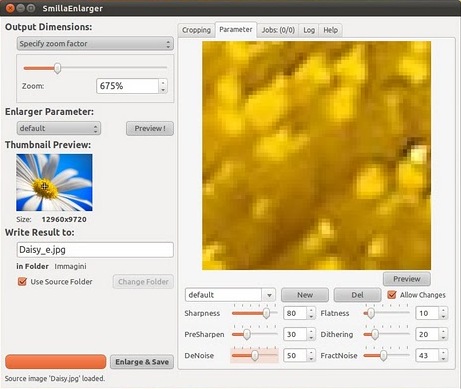
SmillaEnlarger, Enlarge Your Images Without Losing Quality!

Have you ever wondered if there's way to enlarge your images to higher resolutions without losing quality? (or at least losing very little that most of the time its even no visible to the naked eye!). Well there is apparently a way.

Although this is not something really new, Adobe Photoshop has an excellent utility to do that. Yep that's how they print huge banners by using pictures that have very smaller resolutions (in comparison with those big banners of course).

The Awesome Enlarger... :P

Photoshop is great for that, but it is very very pricey. And also if you don't like the proprietary software at all and looking or an excellent, FREE app that lets you zoom (enlarge) small images to higher resolutions with lesser amount of distortions, then my friend you gotta try the SmillaEnlarger!.  

How the heck does it do that?

Well, SmillaEnlarger uses very complex algorithms to "fill" the pixels with appropriate colors. It is so powerful that even after zooming a picture at 1300%, still it looks awesome!. The GUI looks pretty simple and ease to use and you can change settings such as zooming level, brightness, etc as well.

It's available for Microsoft Windows, Mac OSX and GNU/Linux. If you're using the Ubuntu 11.04 beta... then open your Terminal and issue the below command.
sudo add-apt-repository ppa:ferramroberto/nattyextra
sudo apt-get update
sudo apt-get install smillaenlarger

In Ubuntu 10.10, enter the below command instead.
sudo add-apt-repository ppa:ferramroberto/maverickextra

sudo apt-get update

sudo apt-get install smillaenlarger

I heard about this app via these Awesome Italian Freedom Geeks :P.

RawTherapee, A RAW Image Editor for GNU Linux/Ubuntu

RAW images need a little processing procedure before they can be edited via a normal image editor. Although the major image suits support it them by default, but if you want a utility that is especially designed for that purpose, then RawTherapee is a must have in GNU Linux.

Main GUI...

So, if you have plugged in a camera that only includes RAW images (yikes! :P) then this is a very powerful tool that can save your day! :).

Main features...

*. Images processing in 16 bit channel mode.

*. Supports high performance demosaicing algorithms (EAHD and HPHD and VNG-4).

*. Crop, re-size, enhance, etc... has a lot of tools out of the box!.

*. Supports various formats such as JPEG, BMP, TIFF.

*. Thumbnail previews of RAW images.

*. Advanced color management... are just a very few to mention.

If you use Ubuntu and want to give it a try, then open your Terminal and enter the below command to install RawTherapee.
sudo add-apt-repository ppa:rawtherapee/ppa
sudo aptitude update
sudo aptitude install rawtherapee

Install GIMPshop in Windows, A Modified Version of the GNU GIMP

Other than one or two apps from the KDE team, I don't there are that many which can be compared to the GIMP image editor. It has a long history with the GNU philosophy..., so everybody respects it :). But the interface of the GIMP editor is something that some criticizes, even in these days, by saying why they can't create a GUI similar to the Adobe photoshop for a change :P.

Very similar to GIMP GUI, but better Adobe "looking" menus, etc..

But I don't think GIMP will ever do that for us!, I don't blame them actually. They just can't!. Think about it, if they do so, they they'll lose the respect, all their efforts for creating an amazing image manipulation suit, but at the end some could accuse them of "copying" Adobe!.

So as most, I too understand the issue from their perspective. But that's not to say that you can't customize GIMP and create a GUI that is very similar to the Adobe photoshop which should help the "migrating" users as well.

That's exactly what the GIMPshop developers has done. The GIMP-shop come with all the features of GIMP and a GUI that is very very similar to the Adobe suit... how that for a change ;-). So, I'm not going to write a long list of its features since if you know GIMP then you almost all about GIMPshop as well.

Anyhow, if you want to know how to install it in Ubuntu, then first download the .deb package from here.

Now simply double click on the .deb package and follow the instructions on the GUI window. Or, open your Terminal and change the directory to the extracted location (your "Home" folder or to "Desktop" for instance) and issue the below command.
sudo dpkg -i gimpshop_2.2.11-1_i386.deb