Pages

Showing posts with label file systems. Show all posts

How to Manage Mounted/Unmounted File Systems Easily in Ubuntu?

I remember in the past how hard it was with GNU/Linux while trying to mount and un-mounting file systems (especially proprietary ones such as Fat32 and NTFS). The more experienced geeks ;-) like to use the command-line for that since all those disk mounting utilities are installed by default into the OS thus you don't have to manually install a GUI.

But, even if you're a bit "advanced" still by having a GUI tool that uses those command-line utilities makes the whole process a hell lot easier. Although these days GNU/Linux is so good that it just automatically mounts USB devices with ease but still if you're having some troubles with USB pendrive which arrogantly refuses to be mounted + needs to a little tweaking here and there (yikes!), then a utility like "MountManger" can come quite handy.


Main features...

*. As said, this uses the already built in command-line tools thus comes with a huge list of options/features.
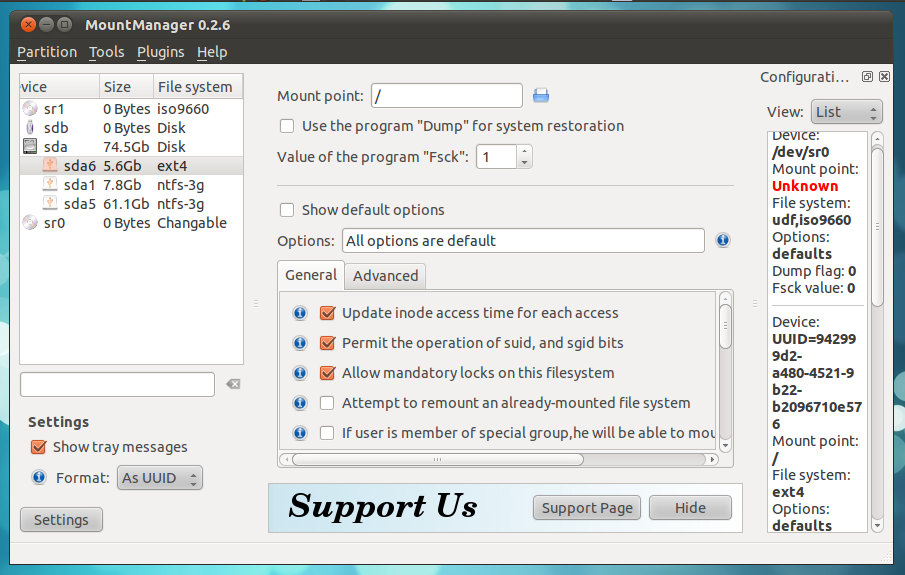
A powerful "little" companion ;-)...
*. Supports the following file systems: ext4/3/2, ntfs, swap, fat, reiserfs, iso9660, udf, etc).

*. Mount and Unmount.

*. Change mount points. 

*. Change mounting privileges of the users.


*. Manually set the supported file systems checked through Fsck utility ("0" means no check and 1 means manual scan for errors).

*. Enable/Disable mounted devices link (shortcut) creation, execute binaries, etc.

*. Specify encryption algorithms.

*. Change Umask, read/write features and a lot other advanced options.


*. Change file name encodings.

*. Heck, it can even mount disk images too! (ISO, NRG, MDF, BIN, etc).


*. As mentioned before, includes a USB mounting wizard that lets you easily mount any troublesome USB devices... are just fraction of its features to mention.

You can install MountManager in Ubuntu 11.04 Natty Narwhal, 11.10, 10.10 and 10.04 by using the below command in your Terminal window.
sudo apt-get install mountmanager


But please be very careful while accessing some of the advanced file system related settings and if you don't know what you're doing (to be honest, I don't even understand half of the options in it! :/), then please don't change anything.  Although it does let you restore easily to the original settings, but still, think twice before stepping into the "unknown" ;-).


But other than that, if you want to do things like enable/disable read-write permissions or change mount points or even mounting disk image files which are considered as "usual needs" for GNU/Linux users these days, then yes, I do find Mount-Manager to be an extremely useful and powerful little utility (even though Ubuntu come with one but it lack the features of M-M) nonetheless.

Use it with caution!, and good luck.

Comprehensive Disk Cleaner (file system) for Ubuntu: FSlint

When comparing with the proprietary MS Windows file systems, the GNU/Linux file systems have their advantages and disadvantages. For instance, according to the experts, GNU/Linux ones, they don't need to be de-fragmented from time to time as with MS Windows, etc ... but I do feel that still, MS FS are better at loading folders filled with thousands of files or concerning the overall performance (at least in my experience).

But the point is, apart from all these differences, there are few things that are common to almost all the file systems thus you may need to manually configure and "fix" some of those issues (not always necessary though) which not only helps to keep a "healthy" file system but it also helps to free some disk space as well.

In that sense, if you've been searching for a dedicated utility that lets you manually search and find duplicate entries, broken links, empty folders, etc... from a singe GUI (+ an optional command-line interface too), then FSlint is an excellent little utility.

Main features...

*. Find and remove duplicate files/folders.

*. Search for Bad File names (doesn't mean they're corrupted or anything, but you know those naughty file names with non-standard UTF characters/names, etc).

*. Name clashes: find conflicting file/folder names.

*. Temporary files.

*. Bad symbolinks (invalid shortcuts).

*. Find files with missing user IDs.

*. Find empty folders.

*. Non stripped binaries & Redundant white-spaces (not entirely sure that the do to be honest).

You can install FSlint in Ubuntu 11.04 Natty Narwhal, 11.10, 10.10 and 10.04 by using the below command in your Terminal window.
sudo apt-get install fslint
But FSlint also has another very useful feature that shows installed packages and their HDD spaces thus you can even remove them/un-install directly using FSlint and it'll even calculate the dependencies and properly remove them. 

My personally favorite feature...
You can also add/exclude paths. But if you want the maximum controllability then you'll have to run it as the root user but be careful and if you don't know what you're doing, then don't search for duplicate files in the OS core locations for instance (although some folder location are automatically excluded) since it can easily break your entire OS.

Also be careful while searching and removing (even inside your Home folder) duplicate files for instance, if you search within your "Home" folder, some of those ".xml" files may have the same name but they would most probably in different locations thus removing them is not a good thing to do.

But other than that, searching for duplicate files within your manually created folders, etc in Ubuntu (also supports few other distributions), FSlint is an excellent utility. But again, please use it with caution.

How to Read Ext4/Ext3 File Systems in MS Windows?

Ext4 is the latest version of the "Ext" journaling file system of GNU/Linux. I think it was Ext2, few years ago which was the main file system. It was really a big pain in the as* because at that time you had to like, check the file system after a certain number of mounts or system boots. It also used to take a long time to check for errors where MS Windows XP was also around at that time with the impressive NTFS file system too.

Anyhow, it's quite amazing what can happen after few years and thanks to a lot of developments and dedications of a lot of Kernel and other GNU/Linux core developers, now we have some highly durable, quite efficient, not just one but a lot of file systems in GNU/Linux.

Apart from all that, still when it comes to loading and handling a folder filled with thousands of files (both small and bigger ones), in my experience, MS Windows handles these folders way faster than GNU/Linux does. So there's still a long way to go and feels like has a lot of room for features and improvements.

Also, Ext won't be having a "Ext5" as far as I know and as a result GNU/Linux distributions such as Fedora has already begun the migration to the newer (and better) GNU file system called Btrfs with their upcoming version 16.

But since we aren't gonna be seeing this switch from Ext to Btrfs in a massive scale in the recent future (or maybe not), would you like to know how to read/mount Ext2/Ext3 and Ext4 partitions in MS Windows?. If so, there's a simple yet powerful utility called Ext2Fsd (Ext file system driver for Windows) that lets you do exactly that.

Main features...


*. Ext2/Ext3 FS read and write support.

*. Read only for Ext4 (although you can force it to write, but I won't recommend it and even if you use the old Ext3 FS, try to use it in read-only mode, just like as I do with NTFS in GNU/Linux).

*. Mount drives and display them in My Computer.

*. Change mount point or drive letters (you can make Ext2Fsd to temporarily mount your drives which will be lost after a reboot or mount them permanently too).

*. Even if you have a Ext4 file system mounted, it's still be displayed as "Ext3" in Ext2Fsd which is normal.

*. Perform fsck and checksum while mounted on MS Windows... are among its main features to mention.


You can get it from this Ex2Fsd Project home page if you want to give it a try. After installing you can run it by main two methods.

1. Run it in the system tray area  OR

2. Run as a services (which makes it invincible).


As in the above screenshot, you can access those options by click on: "File" from its main menu bar and choosing the appropriate option. If however, after mounting the Ext3/4 file system, you got a message from MS Windows saying that the disk is not-formated (yikes!), then simply reboot your PC and remount, which should solve your problems. Good luck.